
(November 2026) In this article we will show how Adobe PDF Spaces can revolutionize the way a company works, using as an example the preparation of a quarterly results presentation at a creative agency and the meeting preparation.
Any company has multiple data about its business scattered across all kinds of documents (invoices, balance sheets, client lists, product presentations, projects, etc.), but what is less common is that this information is organized and that they can extract all the value from those data that drive the business.
The PDF standard is especially useful for storing and sharing information, although many times it is used only as a kind of “digital printer”, converting text files, spreadsheets, and presentations into PDFs as a simple way to archive information for the future. When the time comes to produce a report on a company’s activity, the person in charge ends up juggling numerous tedious tasks: gathering information scattered across sources, extracting the data, and dumping all of this into a useful and engaging presentation.
Preparing follow-up reports is a task that can drag on for a long time and, if done the traditional way, is very inflexible. A last‑minute change in data can invalidate hours and days of work to incorporate the new information.
A tool like Adobe PDF Spaces opens a new world of possibilities for a company to easily query the data contained in its documents, extract valuable data, and generate highly relevant content with ease.
We will take a detailed look at the practical case of a creative agency and how Adobe PDF Spaces can help when gathering information, extracting insights, and presenting it all in a much more attractive way— with a fraction of the effort required by the usual method.
The Challenge: Preparing the Quarterly Report
As a project lead within the company, one of your tasks is to prepare a quarterly report that gathers the projects completed, highlighting the most relevant financial and business information. The starting data come from project sheets prepared by the teams, in which they condense the most relevant information (internal costs of client meetings and design, external costs from vendors, the amount billed, and the final margin).
Until now, the way of producing the reports was to extract all these data from each project, dump them into a summary table, and generate charts that were then inserted into a PowerPoint presentation. A fairly manual and, above all, rigid process. If a new project report was added at the last minute, you had to redo much of the work. And if there were 30 or 40 projects instead of 8 or 9, the workload became enormous. Let’s see how to reinvent this process completely with Adobe PDF Spaces.
How to Do It Better, in Much Less Time?
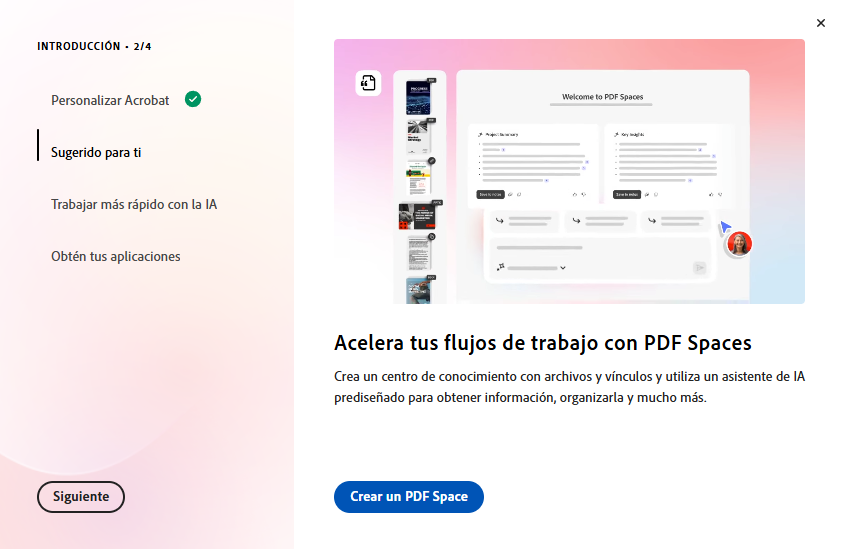
PDF Spaces lives inside Adobe Acrobat. To access its capabilities, you need to install this software on your computer. At the end of the Acrobat installation, the system will ask a few brief questions to tailor it to your needs.
And then you will be able to create your first “space” in PDF Spaces:
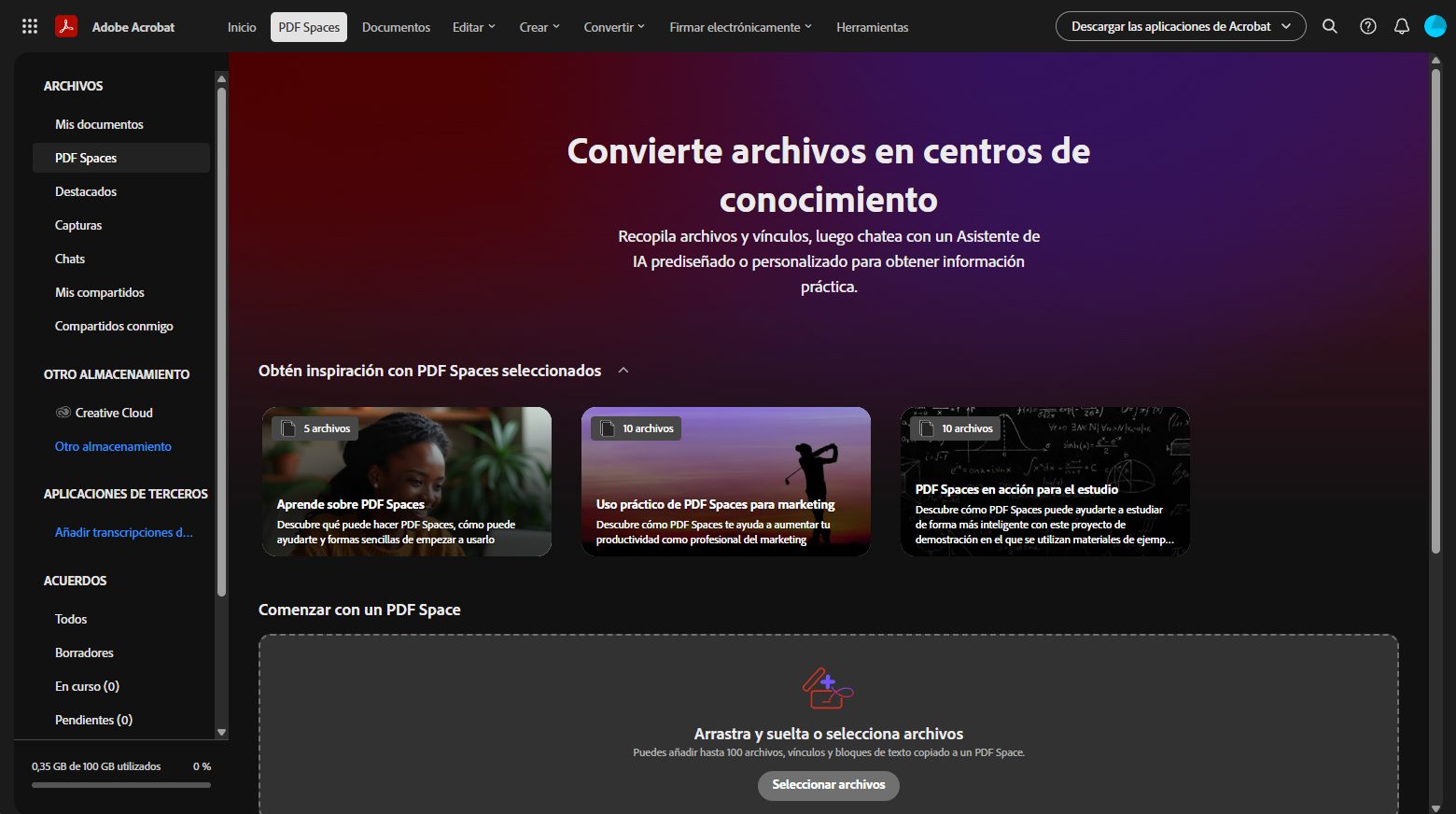
Enter Acrobat PDF Spaces and you’ll access its main workspace:
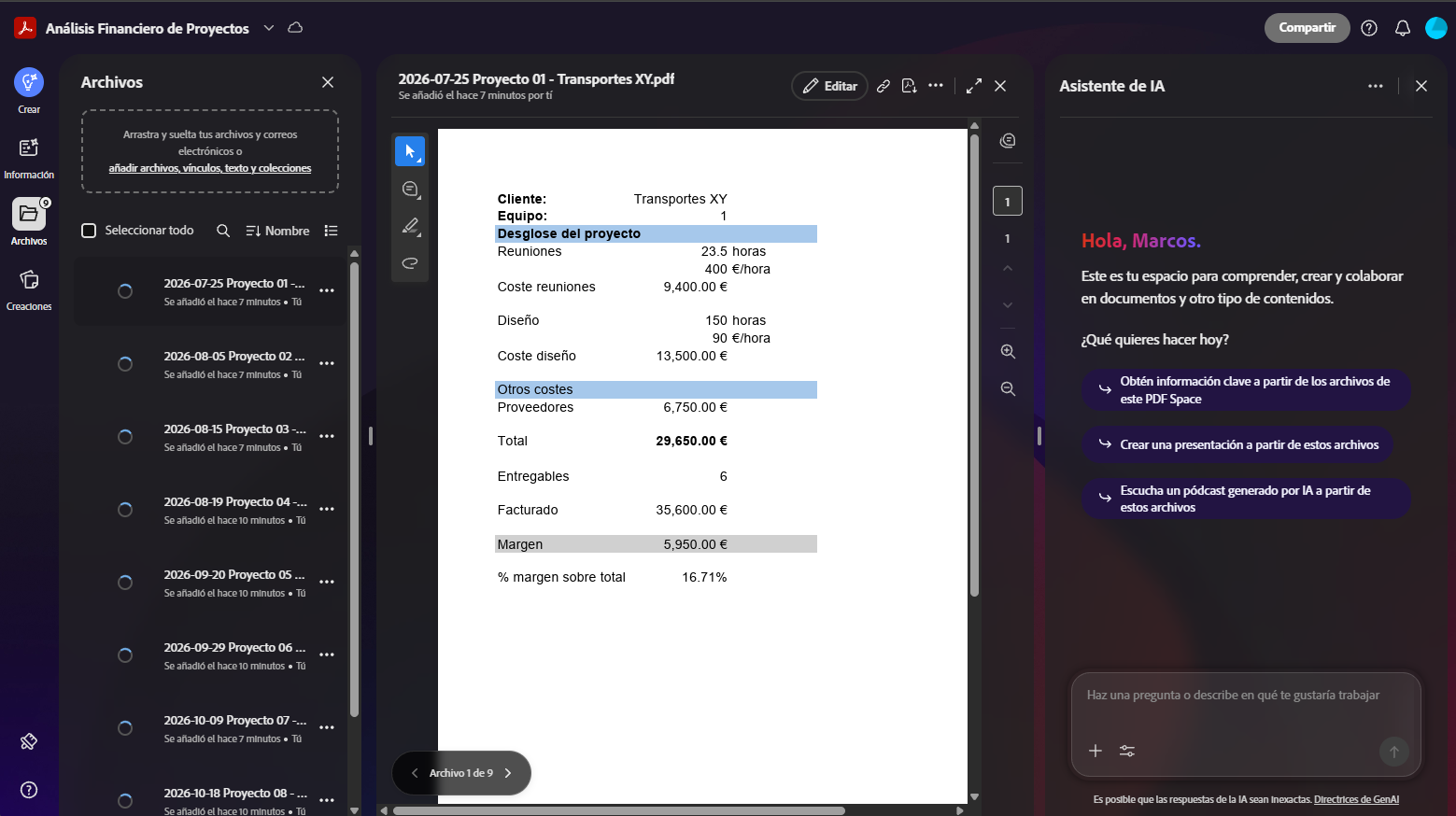
In this example we are going to upload the summary sheets of the 9 projects carried out by the creative agency this quarter. They are Excel files, but they could be in many other formats. They could even be text files containing the same information in a more verbose format.
In this case they contain the information mentioned above about each project: the internal cost of client meetings, the hours of the design teams and the external costs, as well as the amount billed for each one, which internal team handled it, and what final profitability margin each project achieved.
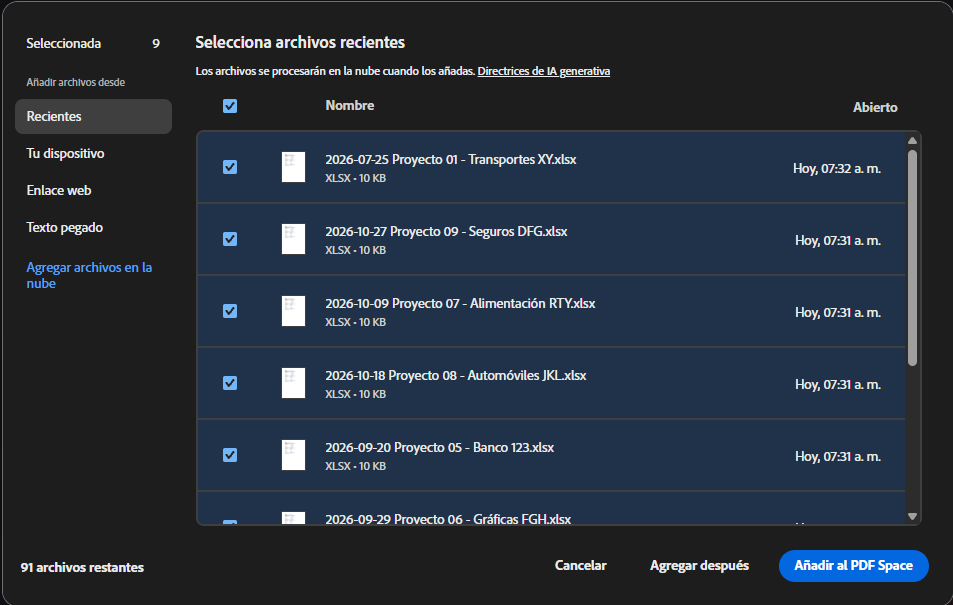
The reality of a company can be more complex, but this data is enough to see how the system works and the enormous ease of being able to ask Adobe’s AI to work on them.
After loading these files, Adobe PDF Spaces will begin analyzing them. You’ll see that even in just a few seconds it may rename the “space” to reflect what the documents contain (strong Financial Analysis of Projects).
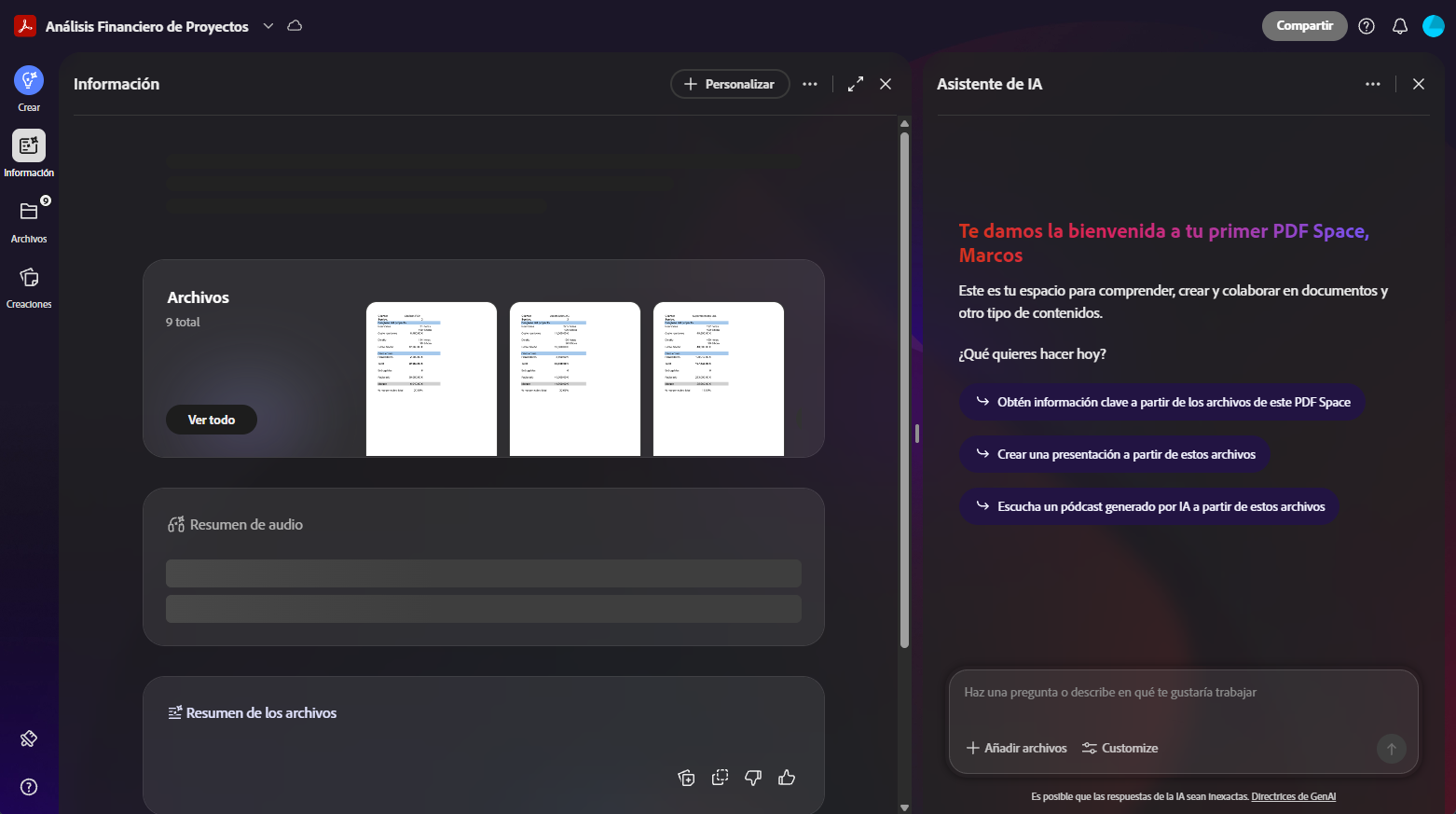
And this is what one of these documents looks like:
Generate report on these 9 projects
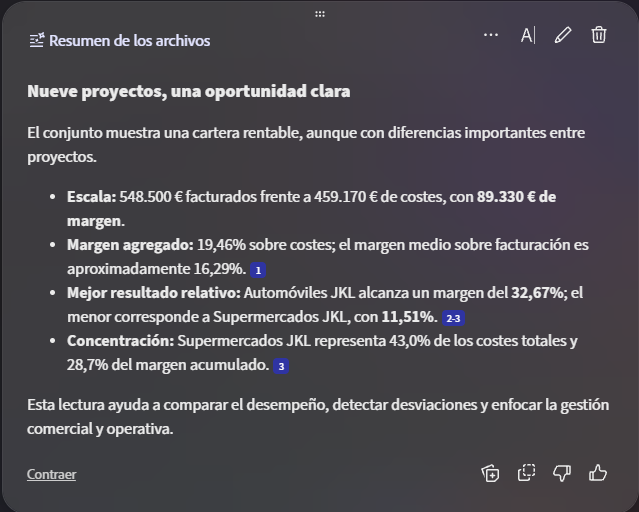
Six words typed in the AI assistant on the right are all it takes for Acrobat PDF Spaces to get to work:

With just this “prompt,” PDF Spaces will do a job that, if we had to do it manually, would take a considerable amount of time. In just a few seconds you’ll see the result on screen:
Create a professional presentation in minutes
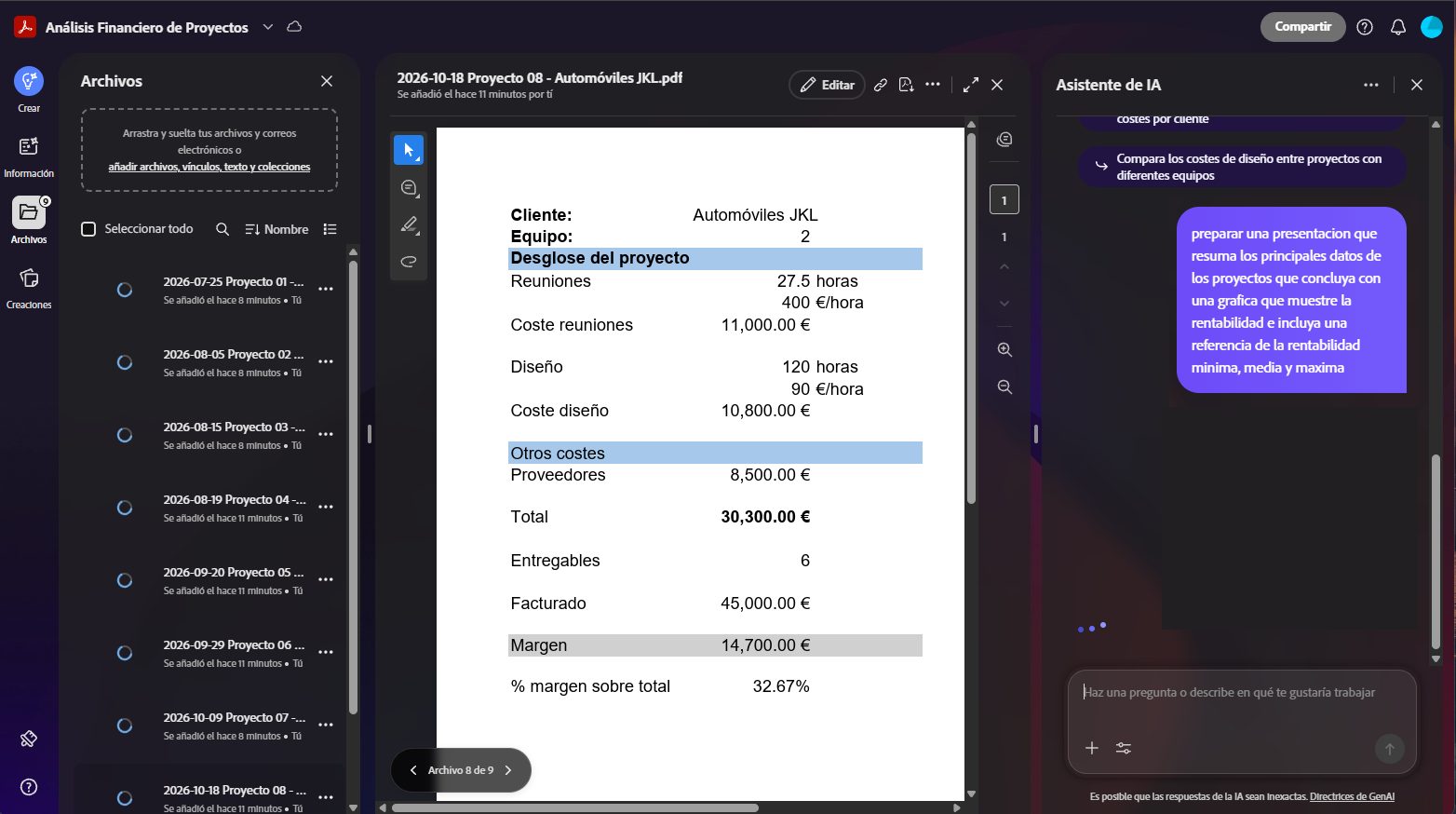
A more ambitious step will be to prepare a presentation to show at the company meeting where the results of these projects will be evaluated. Adobe PDF Spaces together with Adobe Express will handle proposing the visual identity, which you can customize to your liking. Here we’ll give it a more detailed prompt so that the result is already very close to what we’re looking for from the start:
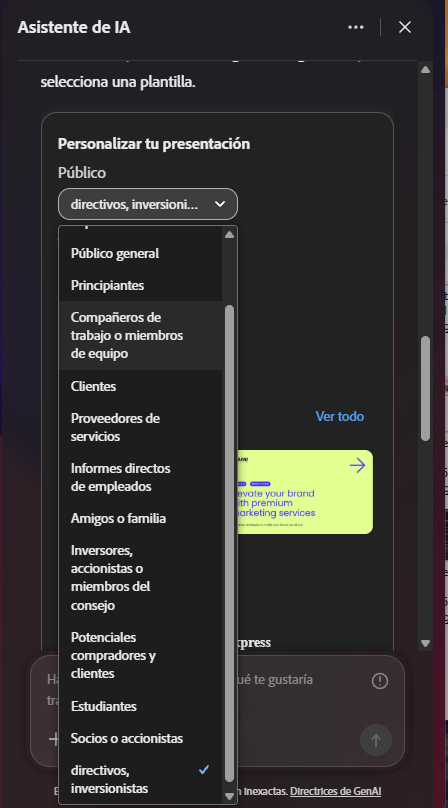
Adobe PDF Spaces will start working and will ask for a few details to customize the presentation it generates, such as the target audience:
The tone or length:
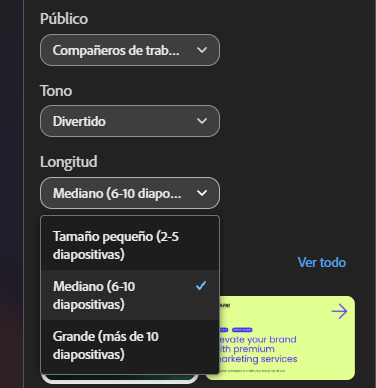
A partir de aquí propondrá un par de plantillas base que elegir. Si queremos ver más opciones, solo hace falta pulsar sobre «Ver todo» y se abrirá un selector con muchas opciones distintas:
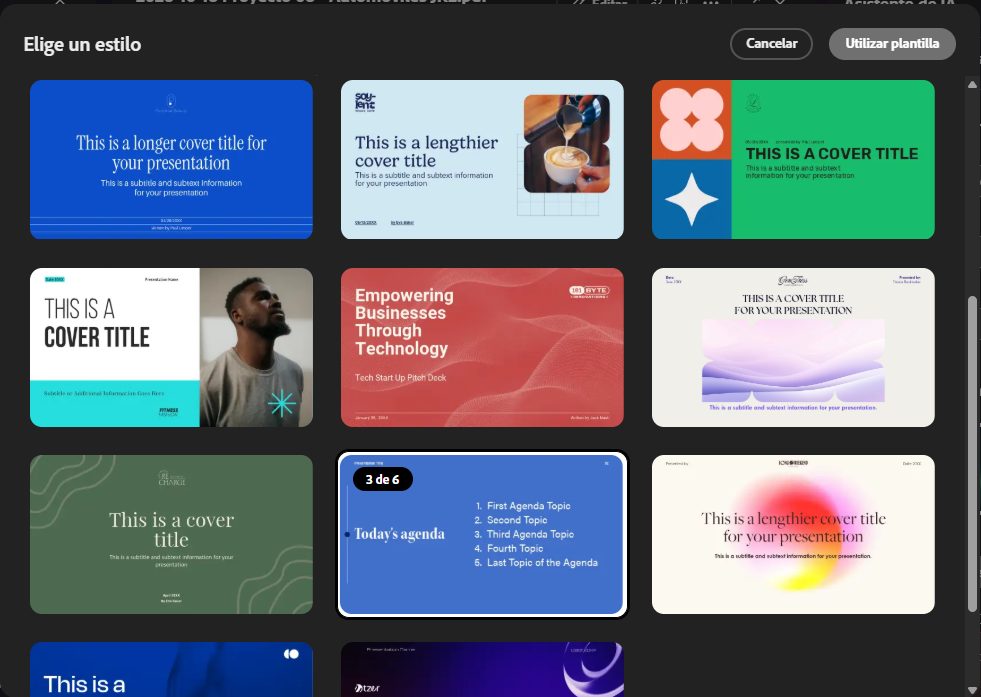
With these simple details defined, you only need to click on “Generate Presentation”:

In a very short time PDF Spaces will display the result on screen:
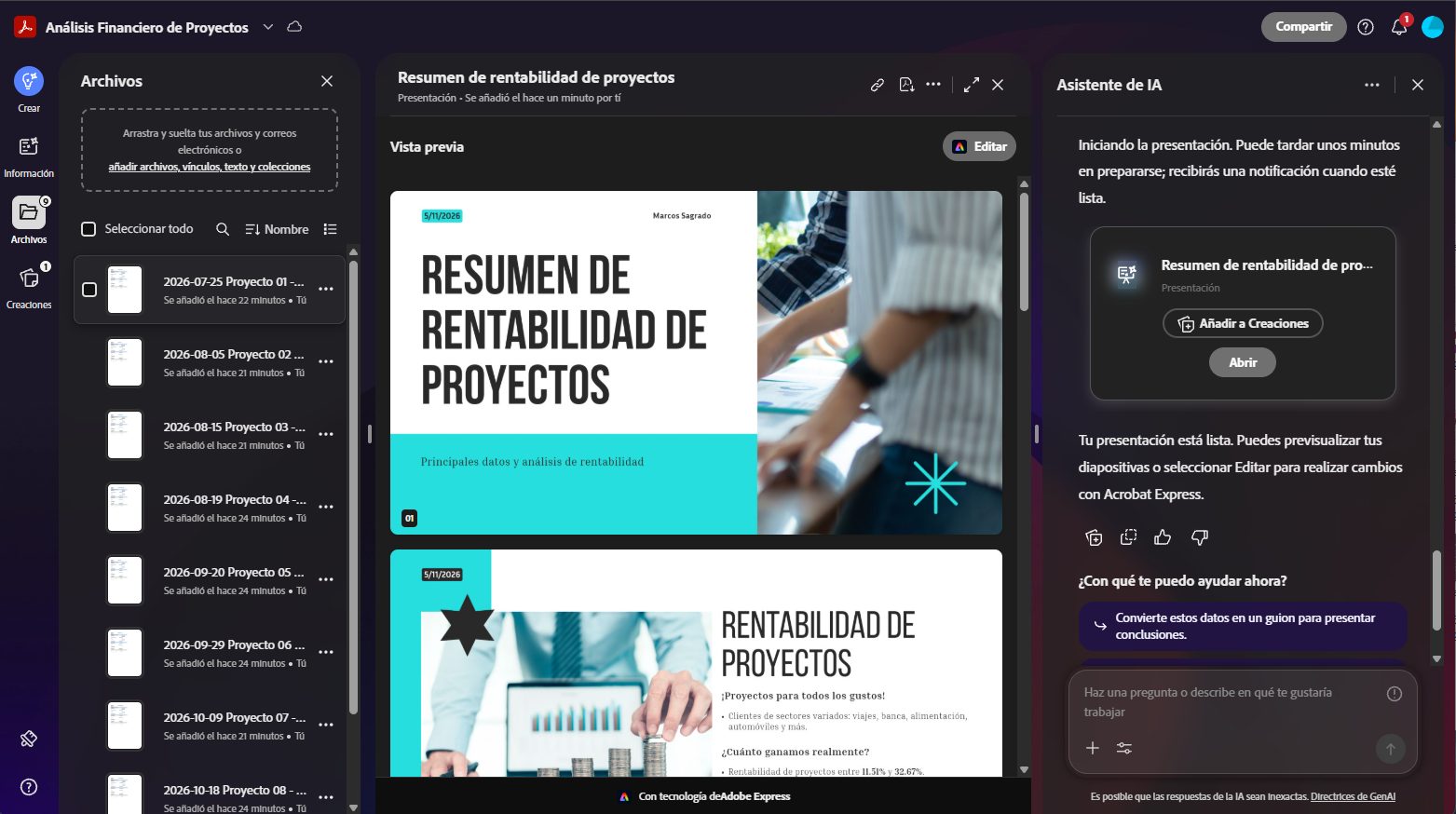
You can flip through all its pages to see how it turned out, and if you want to modify something, just click the “Edit” button at the top right to enter the slide editor:
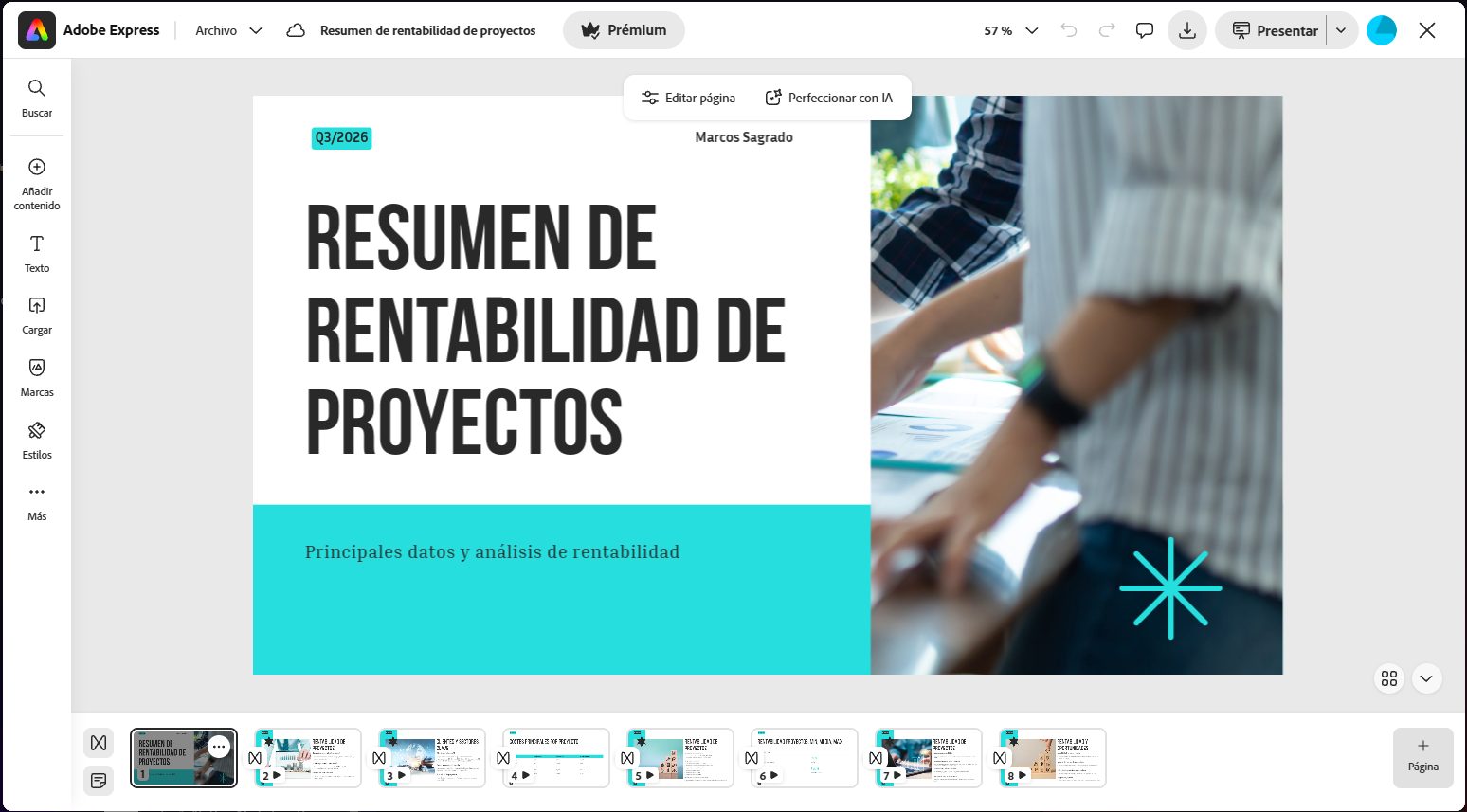
In this example, we modified a header element across all slides and adjusted the size of the table showing the main costs of the projects:
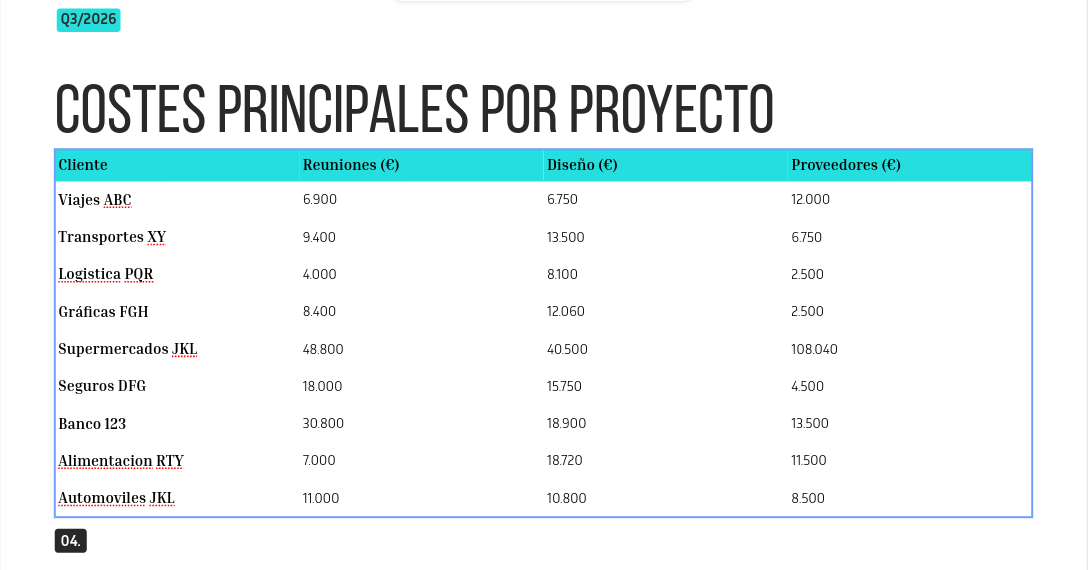
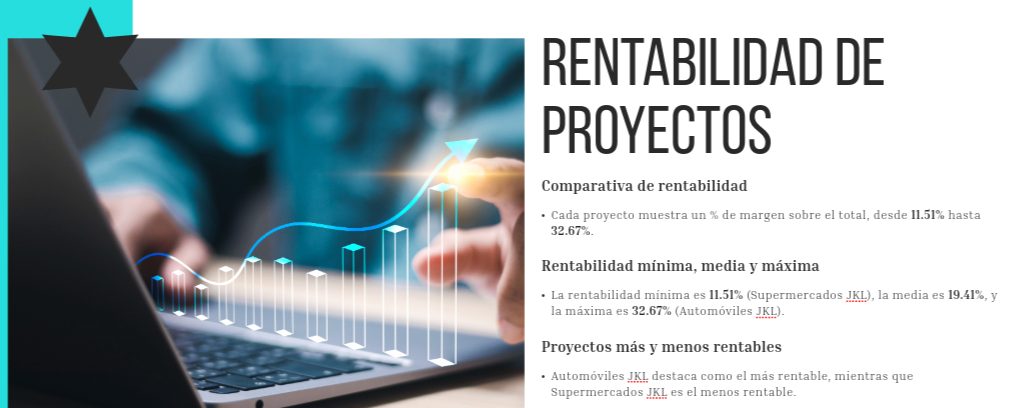
The final slides contain a series of valuable conclusions, such as the profitability comparison of the projects, in a format that’s easy to present:
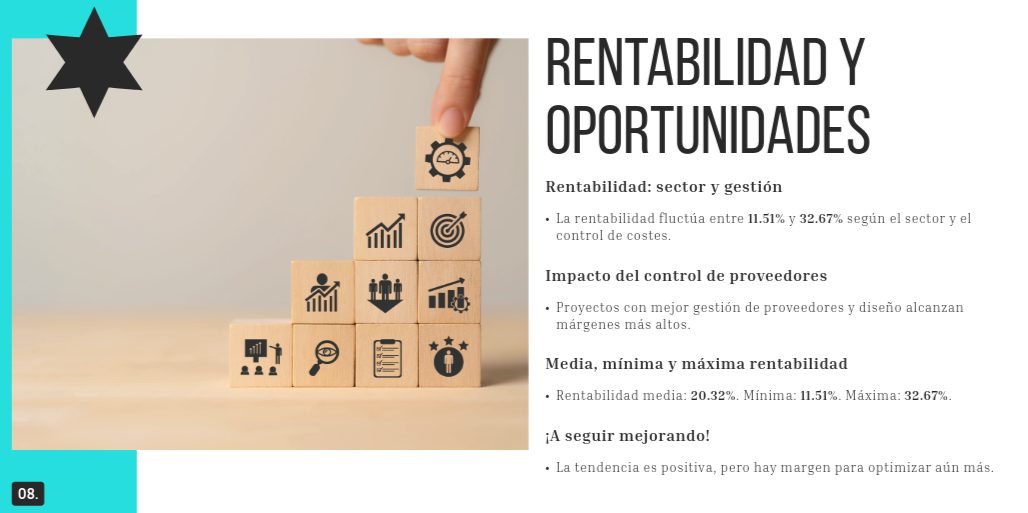
Or the opportunities and initial conclusions from these data:
Automatically extracting high-value information
This is not all; in this example, the creative agency has two separate teams that handle different projects. What can we learn about how each team works from the data of these projects? Simply ask Adobe PDF Spaces’ AI to do it for us with this simple “prompt”:

In moments, the answer will appear on the right:
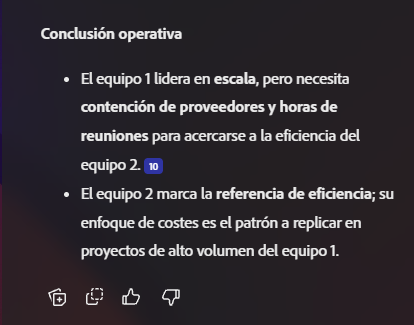
After reviewing it and confirming the results are interesting, we’ll click the “Add to Creations” icon that appears at the end of the response. From then on, we can access this report whenever we want from the Creations icon on the left toolbar.
The result may include charts to help better understand the conclusions:
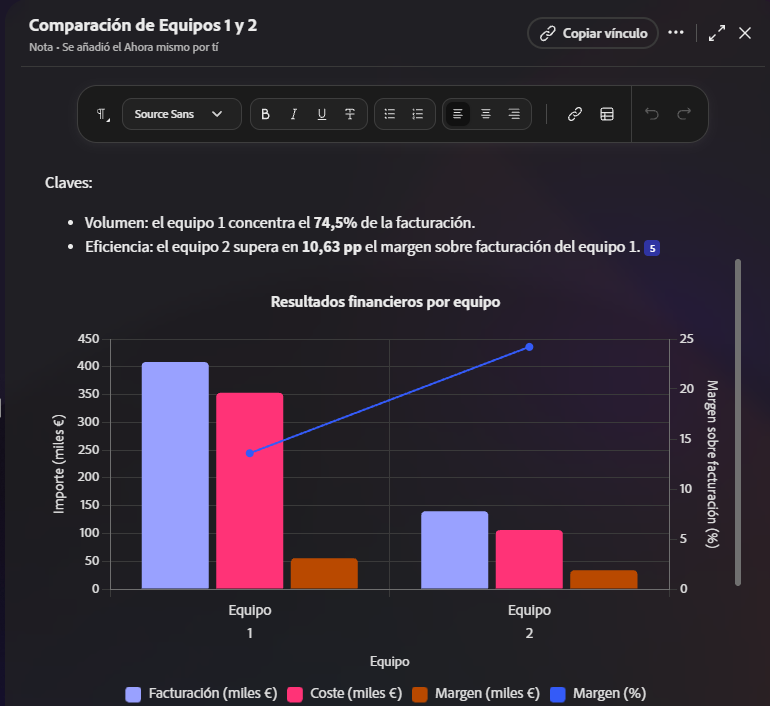
And tables with aggregated data of the results of each team’s projects:
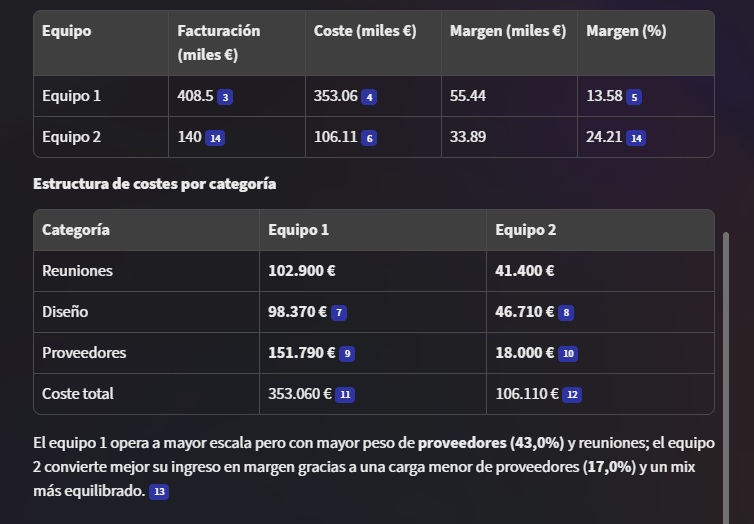
One More Step: Anticipating Objections
Typically when preparing a presentation you include the information (the financial data of the projects in this case), look for the best way to visualize it in a chart, and not always add some conclusions about the data shown.
When presenting it, it can happen that a manager reads the data in their own way and poses questions that can be very hard to answer properly. It is common that, given the daily pace of work, a large portion of time is spent creating such a quarterly results presentation like this one, and little or nothing is spent preparing the questions that might arise and how to answer them in the best possible way.
Well, this has radically changed with Adobe PDF Spaces. Not only does it turn a days-long process into minutes, but it can also help us, and a lot, with this last part: the objections.
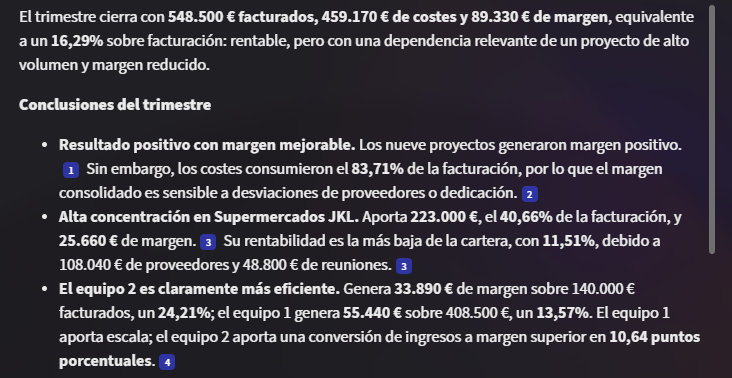
All you need to do is ask the AI assistant to craft a set of final conclusions and pose “difficult” questions that we might be asked. And you can ask it in this simple way:

The AI in Adobe PDF Spaces will quickly respond with a global quarterly summary:
And it will outline a series of questions we might be asked and the best way to answer them:
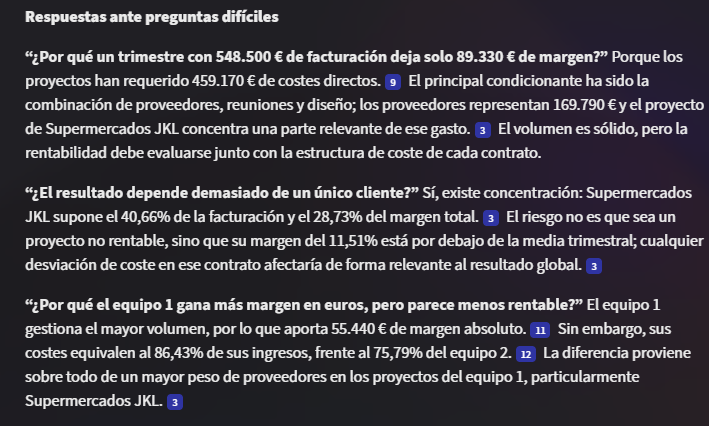
Of course, this does not guarantee that all possible objections are covered. But starting from this base, preparing our argumentation will be a much faster and more comfortable process.
As with the presentation, once we are satisfied with the result offered by the AI, we can add it to our creations so that it remains accessible later.
Another option Adobe PDF Spaces offers is to create a podcast from one of the creations or from the documents themselves. It could be a good idea to listen to it in the car on the days leading up to the presentation to have it even fresher, don’t you think?
Moving from the habit of producing reports as you always did to doing so with the help of Adobe Acrobat PDF Spaces will make your presentations stand out and, at the same time, give you many more hours to focus on running the business rather than assembling and adjusting slides. Ready to give it a try?